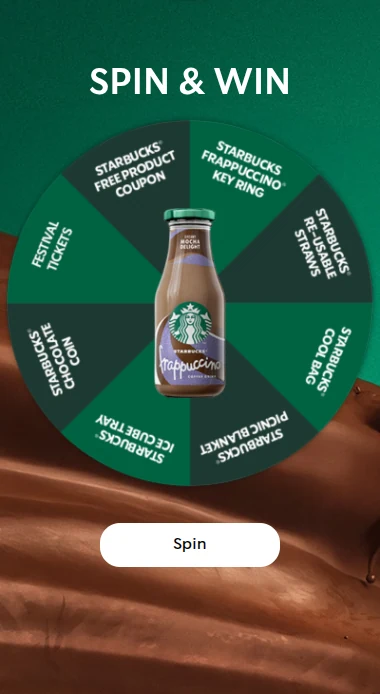




Used well, pop-ups are powerful. They boost engagement, collect leads and increase conversions. With Scratcher, building a gamified pop-up that people actually want to interact with takes just minutes.
In this guide, we'll walk you through how to set up, design and embed your first pop-up on the Scratcher platform.
Step 1: Create Your Pop-up
Once you're logged in to Scratcher:
- Click the "Create" button in the left sidebar.
- In the top menu, choose "Pop-ups" (next to the search bar).
- Select your preferred format. In this example, we'll use the Mystery Box.
- Name your pop-up and click "Create Pop-up".
That's it. You're ready to start customising.
Video: Screen recording of creating a new Mystery Box pop-up in the Scratcher platform.
Step 2: Customise the Design
Scratcher gives you full creative control over how your pop-up looks and feels. Here's what you can adjust.
Placement
Under settings, choose where the pop-up appears:
- Top bar
- Side pop-up
- Middle pop-up
- Full-screen pop-up
Each type offers a different balance of visibility and intrusiveness. A side pop-up is subtle, while a full-screen pop-up is hard to miss.
Video: Screen recording of choosing the pop-up placement and adjusting its design in Scratcher.
Size
Under content, set the pop-up's height and width.
Pro tip: Use the device icons at the bottom to preview and adjust your design for desktop, tablet and mobile.
Backdrop
Also under content, you control what the background looks like while the pop-up is showing. You can:
- Set a solid colour
- Match your brand colours using hex codes
Video: Screen recording of setting the pop-up backdrop colour in Scratcher.
Pop-up Teaser
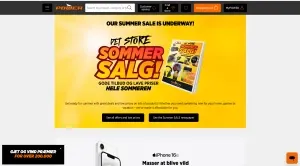
Teasers are clickable elements on your site that open your pop-up. They're a gentle way to nudge visitors to play. You can use a teaser with your pop-up or place it directly on a campaign page.
Step 3: Build the Pop-up Flow
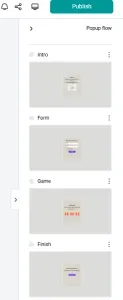
A typical Scratcher pop-up has several steps:
- Intro page: a short welcome and a visual
- Form page: collect details such as email and name
- Game page: let people play and try to win
- Finish page: show the result or a thank-you message
Use the right-hand panel to move between pages and edit text, images and functionality.
Step 4: Set Triggers and Visibility
Scratcher gives you fine control over when, where and how often your pop-up appears.
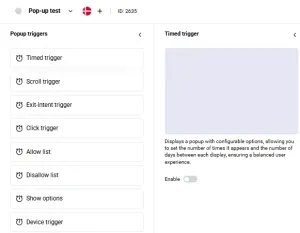
Trigger Options
- Timed trigger: show the pop-up after a set number of seconds.
- Scroll trigger: show it once a visitor has scrolled X% down the page.
- Exit-intent trigger: detect when someone is about to leave and show the pop-up just in time.
- Click trigger: only show the pop-up when a specific button or link is clicked.
- Allow list: target specific visitors by URL path, referral source and device type.
- Disallow list: stop the pop-up from showing under certain conditions, such as on specific pages or for certain IPs or devices.
- Device trigger: hide your pop-up on certain devices.
- Show options: control frequency so you don't annoy people. Set how many times it appears and how many days pass between each display.
Step 5: Apply Your Design Kit
Use "My Designkits" to update your:
- Background colours
- Fonts and button styles
- Overall theme, so everything stays on brand
Preview your changes in real time with the mobile/tablet/desktop toggle at the bottom of the screen.
Video: Screen recording of applying a saved design kit to a pop-up in Scratcher.
Step 6: Add the Pop-up to Your Website
Once your pop-up is ready, it's time to go live.
1. Get Your Script
After creating your first pop-up, go to the Popup Management section. There you'll find a unique script linked to your account. The script stays the same no matter how many pop-ups you create.
2. Choose Where to Show It
Open your website editor or CMS and go to the page where you want the pop-up to appear.
3. Paste the Script
Paste the full script inside your website's <head> tag.
4. Save and Test
Hit save, then visit your site to check that the pop-up works as expected.
Tips for Pop-ups That Convert
- Lead with the game, not the form. A playful format gives people a reason to engage before you ask for details.
- Keep the form short. Email and consent is often enough for a first sign-up.
- Time it well. Exit-intent and scroll triggers usually feel less intrusive than an instant pop-up.
- Match the offer to the page. A product-specific prize on a product page feels more relevant than a generic discount.
Ready to Build Your First Pop-up?
Every one of Scratcher's 40+ formats can run as a pop-up, so you can pick the game pop-up that suits your audience. Browse our templates for inspiration, or start your free 14-day trial and have your first pop-up live today.