


More and more of your visitors arrive on a phone, often straight from a Google search. That makes popups on mobile both valuable and risky: a full-screen box that hides the page is annoying on a small screen, and Google has said for years that it does not like it either. This guide explains what Google actually says about intrusive interstitials, which formats are safe, and the mobile popup best practices that let you collect sign-ups without hurting the experience, or your search performance.
What Google says about intrusive interstitials
Google's position goes back to an announcement in August 2016, "Helping users easily access content on mobile". It said that from January 2017, pages where content is not easily accessible to a user arriving from mobile search results may not rank as highly.
The post listed three examples of techniques that make content less accessible:
- Showing a popup that covers the main content, either immediately after the user arrives from search or while they are looking through the page.
- Displaying a standalone interstitial that the user has to dismiss before they can reach the main content.
- Using a layout where the top of the page looks like a standalone interstitial and the real content is pushed below the fold.
It also listed examples that would not be affected if used responsibly:
- Interstitials that respond to a legal obligation, such as cookie consent or age verification.
- Login dialogs on sites where content is not publicly indexable.
- Banners that use a reasonable amount of screen space and are easily dismissible.
Google's current documentation, "Avoid intrusive interstitials and dialogs", keeps the same spirit. It describes intrusive interstitials as page elements that obstruct users' view of the content, advises against obscuring the entire page, and recommends banners that take up only a small fraction of the screen. It also notes that intrusive elements can make it harder for search engines to understand your content.
Is it a ranking factor?
Google's page experience documentation lists "Do your pages avoid using intrusive interstitials?" as one of the questions to ask about your pages. It also says that there is no single page experience signal, that Core Web Vitals are used by Google's ranking systems, and that other page experience aspects do not directly help a website rank higher.
The practical takeaway: do not expect a popup to sink your rankings on its own, but do not ignore it either. A popup that blocks the content people came for is bad for visitors, and what is bad for visitors tends to be bad for search in the long run.
Allowed vs risky formats on mobile
Based on Google's guidance, here is how common popup formats compare on a phone.
Lower risk
- A small top or bottom bar that does not cover the content.
- A teaser button in a corner that opens the popup only when tapped.
- A slide-in that takes up a small part of the screen and is easy to close.
- Any popup opened by the visitor, for example by tapping a button or link.
Higher risk
- A full-screen popup that appears as soon as someone lands from search.
- A centred popup that covers most of a small screen before people have read anything.
- A popup that is hard to close, with a tiny or hidden close button.
The safest rule: on mobile, let people see the content they came for first, and let them choose to open anything bigger.
Teasers, slide-ins and delayed triggers
You do not have to give up on mobile popups. You need to change how and when they appear.
Teasers
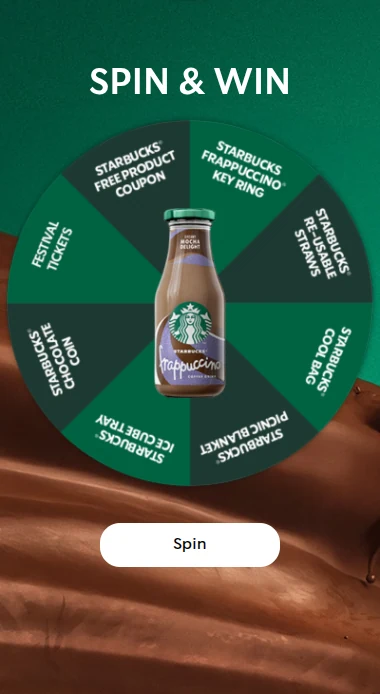
A teaser is a small, clickable element, such as "Spin to win" in the corner of the screen. Nothing covers the content until the visitor taps it. When they do, the popup is something they asked for. In Scratcher, you can add a teaser to any pop-up and choose to hide it on certain devices.
Slide-ins and bars
A side pop-up or a top bar takes up a small part of the screen. On a phone, keep it compact and make sure the close button is easy to hit with a thumb.
Delayed triggers
Instead of showing the popup the moment someone arrives, wait until they have shown interest:
- After time on page, so people have had time to read.
- After scrolling, for example when they have scrolled halfway down an article or product page.
- On click, when people tap a button or link that opens the popup.
Exit intent, which works by tracking the mouse, is a desktop-only trigger, so plan a different trigger for mobile visitors.
In Scratcher, you choose the position (top bar, side, middle or full screen), the trigger and the devices each pop-up shows on, so you can, for example, run one pop-up as a full-screen game for desktop visitors and another as a teaser for mobile visitors. All options are listed on our pop-ups page.
Thumb-friendly games on mobile
If your popup contains a game, it has to work with one thumb on a small screen.
- One tap or one swipe. Spin the wheel, scratch card and mystery box are ideal. Save puzzles and memory games for a landing page.
- Big buttons and tap targets. Small checkboxes are hard to hit.
- A short form. An email and a consent checkbox is often enough. The right keyboard for each field helps too.
- Readable text without zooming.
- A visible close button at all times.
Andel Energi's team put it simply: "The majority of users interact with our campaigns on mobile, so being able to quickly create and adjust mobile-friendly experiences is essential." Read how Andel Energi builds its campaigns.
See which games work best as pop-ups on our game pop-ups page.
Load performance
A popup that slows your page down hurts the very visitors it is trying to convert. And since Core Web Vitals are used by Google's ranking systems, page speed matters for search as well.
- Do not push content around. A popup or bar that pushes the page down after it has loaded causes layout shifts. Overlays that sit on top of the page avoid this. Scratcher pop-ups are shown on top of the page rather than inserted into it.
- Keep images light. Compress backgrounds and prize pictures, especially for mobile.
- Use one script. With Scratcher, you paste one small script on your website once, and it works for every pop-up you make after that.
- Test on a real phone on a mobile connection, not just on your office Wi-Fi.
Not sure a pop-up is the right place for your campaign? You can also put the game right on a page of your website or give it its own landing page, which is often a better fit for mobile traffic from ads and social media.
Mobile popup best practices checklist
- The popup does not cover the main content as soon as people land from search.
- On mobile, you use a teaser, a bar, a slide-in or a delayed trigger.
- The close button is large and easy to find.
- The game takes one tap or swipe.
- The form asks for an email and consent, nothing more to start with.
- Text is readable without zooming.
- The popup does not push page content around.
- Images are compressed.
- You limit how often each visitor sees it.
- You have tested it on a real phone.
Collect sign-ups on mobile, the friendly way
Mobile popups are not banned, and they can work very well. The ones that work respect the visitor: they wait, they stay small until invited, and they are easy to close.
Our guide on how to create high-converting pop-ups shows the full setup. Or start your free 14-day trial and preview your first game pop-up on phone, tablet and desktop before it goes live.